Showing posts with label brother. Show all posts
Showing posts with label brother. Show all posts
Tuesday, December 13, 2016
How to set up wireless printer brother
How to set up wireless printer brother
 |
wireless printer brother |
For example you use a printer brother dcp-J220, this printer in addition to scan and copy are also equipped with fax facilities as well as the number of button or key figures that we use as an option to operate some functions of the printer brother.
Brother printers enrich other interesting features, as time passed it completes its brother printer with networking or wireless access facilities. Processes use the print media usually uses cables, now no longer required in the printer sebahagian printer.
Easier to use you just need to set the printer and computer / laptop, in order to make communication via a wireless network.
As a note to facilitate you utilize existing wireless features on brother, here we provide a brief explanation of how the wireless settings brother printer:
Printer Factory Reset
- Press the "Menu" button on your printer machine
- Use the up and down buttons to find the menu "Network"
- After the Press "OK"
- Select "Factory Reset", then press "OK"
- Press the number "1" (if there is a button fax printer, if not look at the screen for instructions), the machine will automatically reset to its network.
Setup Wizzard to enable wireless
- Press the "Menu", then use the search button on the bottom menu "Network", then press "OK".
- Select the "WLAN", then press "OK"
- Select the "Setup Wizard", and then wait while the engine will look for the SSID, if the SSID has been finished, press the "Clear / Back"
- Wi-Fi icon will be on the top screen.
Setting to Computer
- Insert the CD Driver
- Select the desired language (eg English here)
- Select the "Initial installation"
- Then select "Install MFL-Pro Suite
- Select Yes and wait a minute
- Select the "Wireless Network Connection and select the next
- Check all the options and select the next again
- If you detect wifi printer and select the printer next to the exit message and required to restart
- If you do not detect wifi, select option 2 is to specify your machine by address
- then you fill in the IP address that is in the printer to the empty column
- How to check the IP address on the printer, select Menu -> Network -> WLAN -> TCP / IP -> IP address
- If it is the computer will immediately process, until there is a message "Brother Registration", if there is then select the next and restart the computer.
Setting On the Wireless Network Connection
- On the PC / Notebook find the Wireless Network Connection
- After that select the "SETUP" in the option choose a wireless network
- select Connect
- Also select "Connect Anyway" and wait a minute
- Wait a minute until the Wireless Connected
Note :
The way this setting applies to the type of printer brother contained wireless system.
Go to link download

Sunday, December 11, 2016
Brother MFC J285DW Driver Download
Brother MFC J285DW Driver Download
 |
| Brother MFC-J285DW Driver Download |
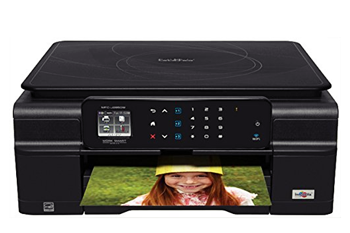
Brother MFC-J285DW Driver Download. Brother MFC-J285DW is one of the products of the Company’s Brother is the choice of many people because it is easy to use, save ink, and the quality is satisfactory, the printer is known by Color Inkjet All-in-One is ideal for use at home or a small or medium business, equipped with wireless, high-speed, touchscreen panel for easy setting, 2-sided printing, and a 1 year warranty make this printer the best choice for you.
Brother MFC-J285DW have a wide variety to seed, of which the Wireless Setup is easy, you can print without using a USB cable, a touchscreen display 1.8 “which help you to organize the documents you want to print, Duplex (2-sided) printing, print speeds up to 33ppm black and 27ppm, supports mobile printing such as AirPrint ™, Google Cloud Print ™, Brother ™ iPrint & Scan, and Cortado Workplace, another advantage that no other printer that is comfortable Ink System 4-cartridge is economical, you only need to replace the cartridges as needed.
Brother MFC-J285DW Driver Download System Requirements & Compatibility
- Windows Xp 32bit
- Windows Xp 64bit
- Windows Vista 32bit
- Windows Vista 64bit
- Windows 7 32bit
- Windows 7 64bit
- Windows 8 32bit
- Windows 8 64bit
- Windows 8.1
- Linux
- Mac OS
Brother MFC-J285DW Driver Download Installations
Note :
- These instructions are for Windows 7 Operating System , may be different from the other Versions or Operating System .
- If the driver is installed on your computer , remove it before installing the new driver
- You must log in as Administrator
- If Windows User Account Control prompt is displayed , click Yes .
- If the Windows Security dialog box Appears , check Always trust software from ” Brother Industries , ltd .” and click Install
Installations Guide
- Make sure the computer and the Brother Machine not connected
- When the download is complete and you are ready to install the files, click Open Folder, and then click the downloaded file. The file name ends in. Exe.
- You can accept the default location to save the files. Click Next, and then wait while the installer extracts the files to prepare for installation.
- NOTE: If you closed the Download Complete screen, browse to the folder where you saved the. Exe file, and then click it.
- Select your language with reference to the language list and click “OK”.
- Please follow the installation screen directions.
Unistallations Guide
- Open Devices and Printers by clicking the Start button Picture of the Start button, and then, on the Start menu, clicking Devices and Printers.
- Right-click the printer that you want to remove, click Remove device, and then click Yes.
- If you can’t delete the printer, right-click it again, click Run as administrator, click Remove device, and then click Yes.
Brother MFC-J285DW Driver Download For Windows 32bit
Driver | Download | |
Windows 8.1, Windows 8 | Download Here | |
Windows 7, Windows XP, Windows Vista | Download Here | |
Brother MFC-J285DW Driver Download For Windows 64 bit
Driver | Download | |
Windows 8.1, Windows 8 | Download Here | |
Windows 7, Windows XP, Windows Vista | Download Here | |
Brother MFC-J285DW Driver Download For Mac and Linux
Driver | Download | |
Mavericks OS X 10.9 Mac OS 10.8, 10.7, 10.6 | Download Here Download Here | |
Linux | Download Here | |
Go to link download
Thursday, December 8, 2016
 HL-2040, -
Friday, December 2, 2016
Brother DCP 1610W Driver Download
Brother DCP 1610W Driver Download
 |
| Brother DCP-1610W Driver Download |
Brother DCP-1610W Driver Download. The Brother DCP-1610W Wireless Monochrome Laserjet Multifunction Inkjet printer prints, tests and also duplicates, making your office extremely effective and also effective. Having a built-in wireless interface, this all-in-one additionally allows multiple customers to make use of it. In addition, the actual Brother iPrint&Scan app lets you effortlessly print out a number of document kinds through, or even check out documents directly to your current iOS or even Google android gadgets.
Crucial Features of this printer tend to be Print, copy and also check out almost all within the single useful gadget. Take pleasure in comfort, versatility and easy connection to be able to multiple gadgets along with smart pre-installed features such as Portable Printing which simply boost productivity. Increase your work environment productivity and also effectiveness along with higher print out increases to be able to 20ppm as well as double sided (duplex) publishing. Execute all your workplace publishing jobs because multifunction printer features booklet, poster and also watermark publishing.
Brother DCP-1610W Driver Download System Requirements & Compatibility
- Windows Xp 32bit
- Windows Xp 64bit
- Windows Vista 32bit
- Windows Vista 64bit
- Windows 7 32bit
- Windows 7 64bit
- Windows 8 32bit
- Windows 8 64bit
- Windows 8.1
- Linux
- Mac OS
Brother DCP-1610W Driver Download Installations
Note :
- These instructions are for Windows 7 Operating System , may be different from the other Versions or Operating System .
- If the driver is installed on your computer , remove it before installing the new driver
- You must log in as Administrator
- If Windows User Account Control prompt is displayed , click Yes .
- If the Windows Security dialog box Appears , check Always trust software from ” Brother Industries , ltd .” and click Install
Installations Guide
- Make sure the computer and the Brother Machine not connected
- When the download is complete and you are ready to install the files, click Open Folder, and then click the downloaded file. The file name ends in. Exe.
- You can accept the default location to save the files. Click Next, and then wait while the installer extracts the files to prepare for installation.
- NOTE: If you closed the Download Complete screen, browse to the folder where you saved the. Exe file, and then click it.
- Select your language with reference to the language list and click “OK”.
- Please follow the installation screen directions.
Unistallations Guide
- Open Devices and Printers by clicking the Start button Picture of the Start button, and then, on the Start menu, clicking Devices and Printers.
- Right-click the printer that you want to remove, click Remove device, and then click Yes.
- If you can’t delete the printer, right-click it again, click Run as administrator, click Remove device, and then click Yes.
Brother DCP-1610W Driver Download For Windows 32bit
Driver | Download | |
Windows 8.1, Windows 8 | Download Here | |
Windows 7, Windows XP, Windows Vista | Download Here | |
Brother DCP-1610W Driver Download For Windows 64 bit
Driver | Download | |
Windows 8.1, Windows 8 | Download Here | |
Windows 7, Windows XP, Windows Vista | Download Here | |
Go to link download
Sunday, November 27, 2016
Brother MFC 8950DW Driver Download
Brother MFC 8950DW Driver Download
 |
| Brother MFC 8950DW Driver Download |
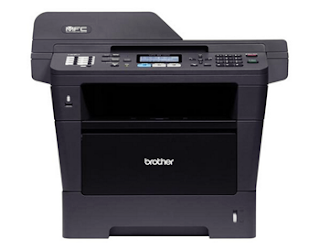
Brother MFC 8950DW Driver Download. Brother MFC 8950DW is really a black and white laser beam inkjet printer which has numerous unique functions. The actual MFC-8950DW can also be the multifunction or perhaps all-in-one inkjet printer since it has the capacity to print out, check, duplicate, send and also in a position to print out automated Duplex (two-sided printing). duplex function is usually utilized for publishing management and also publications. Using these functions can conserve document whenever publishing.
Function of the inkjet printer tend to be Quick, excellent publishing and also replicating together with print out and also duplicate rates of speed as high as forty two webpages each minute, 5? colour Touch screen. with regard to simple navigation, Check paperwork for your Google Drive™, EVERNOTE®, package, OneDrive® and also Dropbox trading accounts, Superior de dos niveles capacity assists conserve document, Print out, check or perhaps PERSONAL COMPUTER send more than your own wi-fi, Big document capability Effortlessly manage your own big print out work through a good variable, Affordable printingSpend much less period changing materials and also create affordable result.
Brother MFC 8950DW Driver Download System Requirements & Compatibility
- Windows Xp 32bit
- Windows Xp 64bit
- Windows Vista 32bit
- Windows Vista 64bit
- Windows 7 32bit
- Windows 7 64bit
- Windows 8 32bit
- Windows 8 64bit
- Windows 8.1
- Linux
- Mac OS
Brother MFC 8950DW Driver Download Installations
Note :
- These instructions are for Windows 7 Operating System , may be different from the other Versions or Operating System .
- If the driver is installed on your computer , remove it before installing the new driver
- You must log in as Administrator
- If Windows User Account Control prompt is displayed , click Yes .
- If the Windows Security dialog box Appears , check Always trust software from ” Brother Industries , ltd .” and click Install
Installations Guide
- Make sure the computer and the Brother Machine not connected
- When the download is complete and you are ready to install the files, click Open Folder, and then click the downloaded file. The file name ends in. Exe.
- You can accept the default location to save the files. Click Next, and then wait while the installer extracts the files to prepare for installation.
- NOTE: If you closed the Download Complete screen, browse to the folder where you saved the. Exe file, and then click it.
- Select your language with reference to the language list and click “OK”.
- Please follow the installation screen directions.
Unistallations Guide
- Open Devices and Printers by clicking the Start button Picture of the Start button, and then, on the Start menu, clicking Devices and Printers.
- Right-click the printer that you want to remove, click Remove device, and then click Yes.
- If you can’t delete the printer, right-click it again, click Run as administrator, click Remove device, and then click Yes.
Brother MFC 8950DW Driver Download For Windows 32bit
Driver | Download | |
Windows 8.1, Windows 8 | Download Here | |
Windows 7, Windows XP, Windows Vista | Download Here | |
Brother MFC 8950DW Driver Download For Windows 64 bit
Driver | Download | |
Windows 8.1, Windows 8 | Download Here | |
Windows 7, Windows XP, Windows Vista | Download Here | |
Brother MFC 8950DW Driver Download For Mac and Linux
Driver | Download | |
Mac OS X 10.9 Mac OS 10.8, 10.7, 10.6 | Download Here Download Here | |
Linux | Download Here | |
Go to link download
Thursday, November 24, 2016
Brother MFC J5620DW Download Driver Printer
Brother MFC J5620DW Download Driver Printer
 |
Brother MFC J5620DW |
Various printing needs well done, a printer who has a super-fast print speeds and larger capacity J5000 various papers that remain idle.
Help for your small and medium enterprises with the features of the print volume increase and change their operations, greater paper capacity with a strong cost per page (CPP) credentials, J5000 so it has room to keep growing better with regular A3 print documents and saving more money.
Download Driver Brother MFC J5620DW For Windows
Download | Compatible Operation System |
Windows 8.1, Windows 8 64bit | |
Windows 8.1, Windows 8 64bit | |
Windows 7, Windows Vista, Windows XP 32bit | |
Windows 7, Windows Vista, Windows XP 32bit |
Download Driver Brother MFC J5620DW For Mac OS - Macintosh
Download | Compatible Operation System |
OS X 10.9, OS X 10.8 | |
Mac OS X 10.7, Mac OS X 10.6, Mac OS X 10.6 |
Download Driver Brother MFC J5620DW For Linux
Download | Compatible Operation System |
Linux |
| Brand | Brother |
| Item Weight | 14 Kg |
| Product Dimensions | 59.2 x 42.4 x 36 cm |
| Item model number | MFCJ5620DWZU1 |
| Series | MFC J 5620 DW |
Go to link download
Sunday, November 20, 2016
Brother MFC J650DW Driver Download
Brother MFC J650DW Driver Download
 |
| Brother MFC-J650DW Driver Download |
Brother MFC-J650DW Driver Download Review
The flashiest characteristic the Mfc-J650dw forgets is close field correspondence (Nfc) underpin. Nfc makes printing from a portable unit amazingly simple. Be that as it may, provided that you don’t have a telephone or tablet that underpins Nfc, you won’t have the capacity to utilize it as a part of any case.
Additionally under the class of association decisions that the Brother Mfc-J870dw has yet the Mfc-J650dw doesn’t are Ethernet and Wi-Fi Direct. The Mfc-J650dw offers Wi-Fi, so you can interface it to a system, yet remotely just. It additionally offers some portable printing characteristics (increasingly on those later), so you can print to it from versatile apparatuses. Be that as it may, it doesn’t have Wi-Fi Direct, which implies that provided that you interface it to your machine by Usb link, instead of join it to your system by Wi-Fi, you can’t utilize any of the versatile print choices.
The Mfc-J650dw’s center Mfp characteristics incorporate printing and faxing from, in addition to filtering to, a Pc and additionally functioning as a standalone copier and fax machine. The 2.7-inch touch-screen based front board menu causes make it simple to give orders for duplicating and faxing; for examining and sending an index as a message connection, utilizing the message program on your Pc; and that’s only the tip of the iceberg.
The Brother Mfc-J650dw is essentially the Brother Mfc-J870dw with some take a route that is excessively expedient. Provided that you require any of the characteristics it forgets Nfc underpin, Ethernet, Wi-Fi Direct, or printing on optical discs—there’s horrible excuse for why not to pay a little more and get the Brother Mfc-J870dw rather. Provided that you don’t require any of the aforementioned additional items, nonetheless, the Brother Mfc-J650dw can spare you a little money.
To download this driver, please click the link.
Brother MFC-J650DW Driver Download
Go to link download
Monday, November 14, 2016
Brother MFC J245 Driver Download
Brother MFC J245 Driver Download
 |
| Brother MFC-J245 Driver Download |
Brother MFC-J245 Driver Download. Brother MFC-J245 is a Color Inkjet All-in-One for your Home or Home Office. The Brother MFC J245 be immaculate printer to use to print on your home or office. It turned into a printer that has a monetary esteem regarding cost furthermore ready to give cost reserve funds in printing. All that can happen with the backing of Ink Save Mode emphasize that diminishes ink utilization amid printing by illustrating pictures for draft printing.
In case you’re searching for a simple to-use, efficient shade inkjet holding nothing back one that won’t squander significant workspace, the Brother™ MFC-J245 may be precisely what you require. In addition to its budget-friendly purchase price, The Features of this printer are 1-Line LCD Display, Fast print speedsup to 33 ppm dark and 27 ppm color, Built-in fax you can send or get documen without PC, duplicate or output utilizing up to 20-page auto report feeder, Easy to utilize, front stacking tray holds up to 100 sheets.
Brother MFC-J245 Driver Download System Requirements & Compatibility
- Windows Xp 32bit
- Windows Xp 64bit
- Windows Vista 32bit
- Windows Vista 64bit
- Windows 7 32bit
- Windows 7 64bit
- Windows 8 32bit
- Windows 8 64bit
- Windows 8.1
- Linux
- Mac OS
Brother MFC-J245 Driver Download Installations
Note :
- These instructions are for Windows 7 Operating System , may be different from the other Versions or Operating System .
- If the driver is installed on your computer , remove it before installing the new driver
- You must log in as Administrator
- If Windows User Account Control prompt is displayed , click Yes .
- If the Windows Security dialog box Appears , check Always trust software from ” Brother Industries , ltd .” and click Install
Installations Guide
- Make sure the computer and the Brother Machine not connected
- When the download is complete and you are ready to install the files, click Open Folder, and then click the downloaded file. The file name ends in. Exe.
- You can accept the default location to save the files. Click Next, and then wait while the installer extracts the files to prepare for installation.
- NOTE: If you closed the Download Complete screen, browse to the folder where you saved the. Exe file, and then click it.
- Select your language with reference to the language list and click “OK”.
- Please follow the installation screen directions.
Unistallations Guide
- Open Devices and Printers by clicking the Start button Picture of the Start button, and then, on the Start menu, clicking Devices and Printers.
- Right-click the printer that you want to remove, click Remove device, and then click Yes.
- If you can’t delete the printer, right-click it again, click Run as administrator, click Remove device, and then click Yes.
Brother MFC-J245 Driver Download For Windows 32bit
Driver | Download | |
Windows 8.1, Windows 8 | Download Here | |
Windows 7, Windows XP, Windows Vista | Download Here | |
Brother MFC-J245 Driver Download For Windows 64 bit
Driver | Download | |
Windows 8.1, Windows 8 | Download Here | |
Windows 7, Windows XP, Windows Vista | Download Here | |
Brother MFC-J245 Driver Download For Mac and Linux
Driver | Download | |
Mac OS X 10.9 Mac OS 10.8, 10.7, 10.6 | Download Here Download Here | |
Linux | Download Here | |
Go to link download
Wednesday, October 26, 2016
Brother MFC 8910DW Driver Download
Brother MFC 8910DW Driver Download
 |
| Brother MFC 8910DW Driver Download |
Brother MFC 8910DW Driver Download. Brother MFC 8910DW is really an inkjet printer having an excellent number of features and also functions in order to print out monochrome files, scan, send and also copy. This particular inkjet printer additionally helps in order to print out two-sided (duplex). This particular function enables you to print out brochures, publications, and may conserve the price of purchasing document. If you want the inkjet printer that may progress up in order to duplicate and also effective at providing high-speed publishing to meet your needs files, the actual MFC 8910DW in a position to solution all of your requirements. Obtain the print out and also duplicate increases in order to forty two ppm. This really is amazing print out rates. It really is ideal your office which has a higher print out strength.
The particular Brother™ MFC-8910DW black and white laser all-in-one is a great, cheap selection for the active workplace or even company. This brings together high-speed, dependable publishing and also duplicating as much as 42ppm, excellent colour scanning services, and also faxing as one long lasting style. The superior de dos niveles features offer automated two-sided publishing and also single-pass, two-sided copying/scanning/faxing.
Brother MFC 8910DW Driver Download System Requirements & Compatibility
- Windows Xp 32bit
- Windows Xp 64bit
- Windows Vista 32bit
- Windows Vista 64bit
- Windows 7 32bit
- Windows 7 64bit
- Windows 8 32bit
- Windows 8 64bit
- Windows 8.1
- Linux
- Mac OS
Brother MFC 8910DW Driver Download Installations
Note :
- These instructions are for Windows 7 Operating System , may be different from the other Versions or Operating System .
- If the driver is installed on your computer , remove it before installing the new driver
- You must log in as Administrator
- If Windows User Account Control prompt is displayed , click Yes .
- If the Windows Security dialog box Appears , check Always trust software from ” Brother Industries , ltd .” and click Install
Installations Guide
- Make sure the computer and the Brother Machine not connected
- When the download is complete and you are ready to install the files, click Open Folder, and then click the downloaded file. The file name ends in. Exe.
- You can accept the default location to save the files. Click Next, and then wait while the installer extracts the files to prepare for installation.
- NOTE: If you closed the Download Complete screen, browse to the folder where you saved the. Exe file, and then click it.
- Select your language with reference to the language list and click “OK”.
- Please follow the installation screen directions.
Unistallations Guide
- Open Devices and Printers by clicking the Start button Picture of the Start button, and then, on the Start menu, clicking Devices and Printers.
- Right-click the printer that you want to remove, click Remove device, and then click Yes.
- If you can’t delete the printer, right-click it again, click Run as administrator, click Remove device, and then click Yes.
Brother MFC 8910DW Driver Download For Windows 32bit
Driver | Download | |
Windows 8.1, Windows 8 | Download Here | |
Windows 7, Windows XP, Windows Vista | Download Here | |
Brother MFC 8910DW Driver Download For Windows 64 bit
Driver | Download | |
Windows 8.1, Windows 8 | Download Here | |
Windows 7, Windows XP, Windows Vista | Download Here | |
Brother MFC 8910DW Driver Download For Mac and Linux
Driver | Download | |
Mac OS X 10.9 Mac OS 10.8, 10.7, 10.6 | Download Here Download Here | |
Linux | Download Here | |
Go to link download
Subscribe to:
Posts (Atom)