Showing posts with label style. Show all posts

Monday, December 5, 2016

New Blogger Widget Contact form Change Style Install in a Static Page

New Blogger Widget Contact form Change Style Install in a Static Page


Just a few days ago, Blogger introduced a new widget. It is about a contact form that you can add to your blog easily. It is very basic, because - at least for now, does not permit incorporating files or send anything other than plain text.  

The contact form for Blogger has the following features:
  • Field for the user name
  • Field for email
  • Field for the message (textarea)
  • Submit Button

DEMO
   

The design is simple and the text colors inherit the section where you add it. At the moment, this widget has no configuration options and is not available for dynamic views.

How to Add Contact Form to Blogger

To add it to your blog, just select the Layout tab, then click on Add a gadget in the section you want to show, for example, in the sidebar. Then, select the More gadgets tab and add the Contact Form gadget.
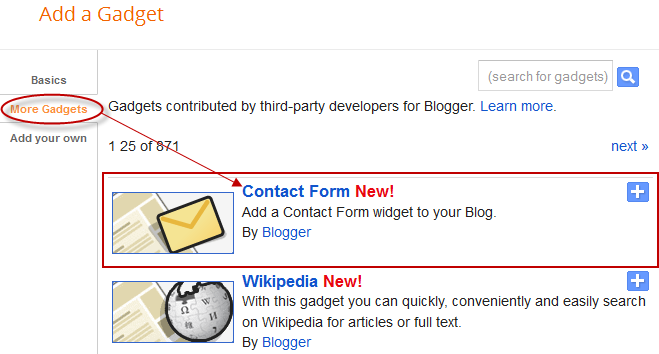

blogger gadgets, blogger widgets, contact form

Styling Contact Form


As the background is transparent, the form will integrate well, aesthetically speaking, but nevertheless it is easy to modify using Style Sheets (CSS) to the appropriate selectors. Heres an example:

/* Contact Form Container */
.contact-form-widget {
width: 500px;
max-width: 100%;
margin: 0 auto;
padding: 10px;
background: #F8F8F8;
color: #000;
border: 1px solid #C1C1C1;
box-shadow: 0 1px 4px rgba(0, 0, 0, 0.25);
border-radius: 10px;
}

/* Fields and submit button */
.contact-form-name, .contact-form-email, .contact-form-email-message {
width: 100%;
max-width: 100%;
margin-bottom: 10px;
}

/* Submit button style */
.contact-form-button-submit {
border-color: #C1C1C1;
background: #E3E3E3;
color: #585858;
width: 20%;
max-width: 20%;
margin-bottom: 10px;
}

/* Submit button on mouseover */
.contact-form-button-submit:hover{
background: #4C8EF9;
color: #ffffff;
border: 1px solid #FAFAFA;
}

This is how it will look like after applying the style:
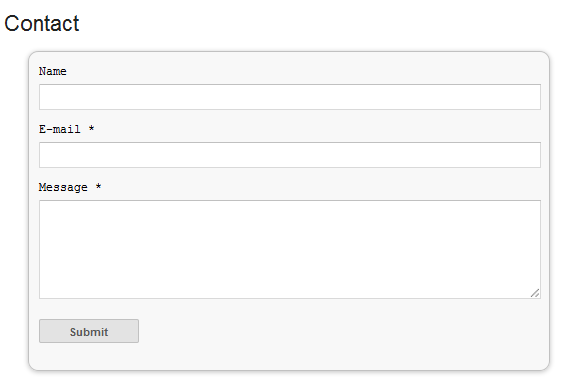
contact form, blogger gadgets, contact form for blogger

To add this style, go to Template > Edit HTML , click on the sideways arrow next to <b:skin>...</b:skin> and paste the code just above ]]></b:skin> (press CTRL + F to find it):



How To Add Contact Form In A Static Page


First step is to add the Contact Form gadget (Layout) and second, to edit the template (Template > Edit HTML) to remove most of the gadget. You have to search for the id "ContactForm", expand the widget by clicking on the black arrow on the left (same with the includable) and then delete the part that I have colored in red (see below):

Part to be removed:

  <b:widget id=ContactForm1 locked=false title=Contact Form type=ContactForm>
    <b:includable id=main>
  <b:if cond=data:title != &quot;&quot;>
    <h2 class=title><data:title/></h2>
  </b:if>
  <div class=contact-form-widget>
    <div class=form>
      <form name=contact-form>
        <p/>
        <data:contactFormNameMsg/>
        <br/>
        <input class=contact-form-name expr_id=data:widget.instanceId + &quot;_contact-form-name&quot; name=name size=30 type=text value=/>
        <p/>
        <data:contactFormEmailMsg/> <span style=font-weight: bolder;>*</span>
        <br/>
        <input class=contact-form-email expr_id=data:widget.instanceId + &quot;_contact-form-email&quot; name=email size=30 type=text value=/>
        <p/>
        <data:contactFormMessageMsg/> <span style=font-weight: bolder;>*</span>
        <br/>
        <textarea class=contact-form-email-message cols=25 expr_id=data:widget.instanceId + &quot;_contact-form-email-message&quot; name=email-message rows=5/>
        <p/>
        <input class=contact-form-button contact-form-button-submit expr_id=data:widget.instanceId + &quot;_contact-form-submit&quot; expr_value=data:contactFormSendMsg type=button/>
        <p/>
        <div style=text-align: center; max-width: 222px; width: 100%>
          <p class=contact-form-error-message expr_id=data:widget.instanceId + &quot;_contact-form-error-message&quot;/>
          <p class=contact-form-success-message expr_id=data:widget.instanceId + &quot;_contact-form-success-message&quot;/>
        </div>
      </form>
    </div>
  </div>
  <b:include name=quickedit/>

</b:includable>
  </b:widget>

After you have saved the template, go to Pages and paste the following code into a new blank page with the title you want:

 <div class=widget ContactForm id=ContactForm1>
  <div class=contact-form-widget>
    <div class=form>
      <form name=contact-form>
        <p>Name<p>
        <input class=contact-form-name id=ContactForm1_contact-form-name name=name size=30 type=text value=/>
        <p>E-mail *</p>
        <input class=contact-form-email id=ContactForm1_contact-form-email name=email size=30 type=text value=/>
        <p>Message *</p>
        <textarea class=contact-form-email-message cols=25 id=ContactForm1_contact-form-email-message name=email-message rows=5></textarea>
        <input class=contact-form-button contact-form-button-submit id=ContactForm1_contact-form-submit type=button value=Submit/>
        <p class=contact-form-error-message id=ContactForm1_contact-form-error-message></p>
        <p class=contact-form-success-message id=ContactForm1_contact-form-success-message></p>
      </form>
    </div>
  </div>
</div>

Messages will be sent to the same email that you have registered in Blogger.

If you have any Problem with the Post Feel Free to Comment ...


Go to link download

Read more »

Tuesday, November 15, 2016

Another STUNNING Magazine Style Blogger Template Novinture

Another STUNNING Magazine Style Blogger Template Novinture


stunning blogger template Novinture Its been quite a while since Ive released any new blogger template...because of my studies,etc..but, Here Im ...again back with another Stunningly looking Magazine Style Blogger Template.."Novinture".

Ive did so many blogger templates sofar, but for me this one is the best of all.. I love the color combination..looks very professional and cool... and ofcourse with an amazing slideshow feature.


LIVE DEMO | DOWNLOAD


Here are some of the features :

  • Top Nav links
  • Stunning Slideshow
  • Retweet button
  • Facebook Share button
  • 4 Column footer
  • Email Subscriptions
  • Feed Counter
  • Built in Search Box
  • Wonderful Comment section (with avatars)
  • Most Wanted feature.. Page Navigation Enabled
  • Automatic Thumbnails on homepage
  • Automatic Post summaries on homepage
  • Advertisement banner ready (on header)
  • many more.....
Look at few more screenshots...


Page Navigation Ready!


Clean and Professional Comments Section


comments section

And the best thing is..its very easy to install.

Here are Installation Instructions:
(Before you do this, first backup your current template)

1. Download the template and Sign into Blogger » Design » Edit html

and Upload the template file (xml file) and Save it.

2. Editing Top Navigation Links...

To Edit the top Nav links (Home, About Us, Photos,etc..)

Sign into Blogger » Design » Edit html » Tick the "Expand Widget Templates"

Control + F (to search)

Find these lines

<li>

<a href=http://www.bloggertricks.com>Blog Tips</a>

<ul>

<li><a href=http://templates.bloggertricks.com>Blogger Templates</a></li>

</ul>

</li>
<li><a href=http://YOURLINK.blogspot.com>About Us</a></li>

<li><a href=http://YOURLINK.blogspot.com>Photos</a></li>

<li><a href=http://YOURLINK.blogspot.com>Videos</a></li>

<li><a href=http://YOURLINK.blogspot.com>Contact</a></li>


Edit the URLs and their respective Anchor Texts to whatever you like.


3. Editing the Feedburner links

Suppose, if your Blogs Feedburner url is

http://feeds2.feedburner.com/YOURBLOG


Search for "http://shakeelasghar.blogspot.com/" in the template code.. (it will appear 5 times)
and replace every "http://shakeelasghar.blogspot.com/" with "YOURBLOG"

Save the template!


And for Editing Slideshow, Adding Adsense inside post,etc .. Refer to the Complete guide.

If youve any questions,doubts... feel free to ask HERE (template support link) .. Ill help you out..

I hope All of you like the template... looking forward for the comments! :)

Go to link download

Read more »

Monday, October 24, 2016

My Top Ten Magazine Style Free Blogger Templates

My Top Ten Magazine Style Free Blogger Templates


My Top Ten Magazine Style Free Blogger TemplatesIn this post i will share my top 10 Magazine Blogger Templates.Magazine templates are the most common amongst the top bloggers.Click on the title of each template to get the preview and download details.

Most of these templates have cool built in extras like :

*Social bookmark buttons *Re-tweet buttons * Email subscriptions *Search bars *Read more functions *Featured content sliders *Menu bars and more..

Some of these extras will need to be edited you will see instructions on the download page.


Here is the list


1. Upside - Magazine Blogger Template In 5 Colors


2. Superb - AdVanced Blogger Template


3. Personal Press - Stylish Blogger Template


4. iShowcase - Black Gallery Template


5. Mash - Mashable Style Blogger Template


6. Old Paper - Vintage Style Blogger Template


7. Irresistible Blue - Professional Magazine Blogger Template


8. Convergance - Professional Blogger Template


9. Maparaan - Magazine Template


10. Old Black - Magazine Template


So thats the list to be honest i could have added 50 more cool magazine templates.You can find 100s more free templates on Best Blogger Templates Enjoy !

Which one is your favorite or have i left out your favorite magazine template?
Also if you do use one of these let us know so we can have a look !

Go to link download

Read more »

Friday, October 21, 2016

16 Stunning Free Gallery Style Blogger Blogspot Templates

16 Stunning Free Gallery Style Blogger Blogspot Templates


Blogger Gallery Templates
In this post we will continue my list of The Best Free Blogger Templates in the most popular styles.We have already listed the best Artistic Templates, Magazine Templates, Dark Templates and Odd Templates.Today i have listed some awesome Template with a Gallery design.Gallery templates can be used for any type of blog but are most popular with Photography Blogs, Design Blogs, Image Based Blogs and Portfolio Blogs.The basic premise behind a Gallery template is the posts are displayed on the home page as images, so the first images is cropped into a thumbnail and displayed.Some of the templates i have listed below are set to display up to five rows of images.The templates have lots of other features listed with the screenshot and for the Live Demo and Download details simply click the title.

Top 16 Gallery Blogger Templates


1.

Simplex Portfolio - Photography Blogger Template


Template Info : The simplex portfolio free blogger template is a fantastic template for any photographers looking to display their photos in a blog.The template has a large photo slider that slides through selected photos and 12 smaller photo areas.The template also has a posting area for text and other information,This template is perfect for photographers of all levels from beginners to professionals.

Simplex Blogger Template

2.

Magnesiumize - Pro Gallery Blogger Template


Template Info : Magnesiumize is a Magazine Gallery Template suited to Photography And Design Blogs.The template has a professional design and color scheme.The template is made up of Three columns of post summarys on the Homepage and Two Columns with a Right Sidebar on post pages.Included is a Featured Content slider, Four Column Footer and more.

Professional Blogger Temlate

3.

Work A Holic - Photo Display Template


Template Info : The Work A Holic Template is a specialist style for Photographers, Designers or just blogs that display lots of images.The home page displays the main image from the nine latest posts which can be clicked to lead to the full post or more images.When the home page images are hovered over they also display a message.The template also has a sub header and a three column footer section.The design is clean and white.

Photo Display Blogger Template


4.

Creative By Nature - Gallery Blogger Template


Template Info : Creative By Nature is a Three Column Blogger Template with No Sidebar as the columns are used to display posts.The template is perfect for Design Blogs, Photography Blogs, Portfolio Blogs and other blogs focusing on Pictures and Images.The posts are represented by the main image on the home page.

Creative Gallery Blogspot Theme


5.

Premium Gallery - Photographer Blogger Template


Template Info : Premium Gallery is a specialist Blogger template designed to display photos and images.The home page will display thumbnails of 20 pictures which can be clicked to lead to a post with the full image and text.

Premium Blogspot Gallery Theme


6.

Portal Folio - Special Portfolio Template


Template Info : Portal Folio is a specialist Blogger Template for Portfolios, Showcase Blogs, About pages etc..The template uses a clean white theme with a gallery slider and about section in the header.Below the top section is three columns for your info and details.

Portfolio Blogspot Theme


7.

Blue Folio - Bright Gallery Template


Template Info : Blue Folio is a sky blue Gallery Magazine Blogger Template.The Blue Folio template is made up of two columns with a right sidebar.The template has a compact headers section and image only post summarys making it perfect for photo blogs, design blogs and other portfolio blogs.

Bright Gallery Blogspot Template


8.

iShowcase - Black Gallery Template


Template Info : I Showcase is a gallery magazine style blogger template.The template is made up of two columns with a right sidebar and a Block color scheme.The home page displays only an image from each post in three sections of three.This makes iShowcase great for Photography Blogs, Design blogs and other professional Blogs.

showcase gallery blogspot templates


9.

Brown Galleria - Gallery Mag Template


Template Info : Brown Galleria is another great Gallery Magazine template.As with all gallery templates the home page uses fixed summery sections displaying only the first image from each post.This make Brown Galleria a great template for Image, Design or photography blogs.The template is made up of two columns with a right sidebar and a brown color scheme.

Brown Blogspot Theme


10.

Poster Inc - Gallery Blogger Template


Template Info : Poster Inc is a two column gallery Blogger template with a right sidebar.The color scheme is bright with a white background.The posts are displayed as thumbnails on the home page making it great for Photography and Portfolio Blogs.

Poster Inc Blogspot Template


11.

White Magic - Photographers Gallery Blogger Template


Template Info : White Magic Is a Two Column Gallery Blogger Template with a Right Sidebar.The template has a minimal look and is perfectly designed for Photographers, Portfolio Blogs and any Blogs Displaying Images and Designs.The Main Color is White and among the features are Two Column Photo Display on home page, Search Menu and Footer Columns.

White Magic Blog Theme


12.

Minimal Design - Gallery Blogger Template


Template Info : Minimal Design Is a Three Column Gallery Blogger Template with a Right Sidebars.Minimal Design is a Css template making it quick to load.The posts and two narrow sidebars can be use to display images making it a great choice for designers, photographers and Portfolios.The color scheme is bright with a retro feel.

Simple Gallery Blogger Template


13.

Designer Beauty - Gallery Blogger Template


Template Info : Designer Beauty Is a Two Column Blogger Template with a Right Sidebar.The template has a simple design with a bright look, the main color is white.The template features fixed summery boxes to display the posts on the home page with a gallery effect.Other template features are Ads sections, Search and Numbered Navigation.

Web DESIGN Blogspot Theme


14.

Showcase - Gallery Blogger Template


Template Info : Showcase Is a Two Column Gallery Blogger Template with a Right Sidebar.The template has a specialist design to display posts by the main image on the home page.Template features include icons beside selected sidebar titles, unique blog description above header in menu and wood effect background.A great template for design blogs and photography blogs.

Image Gallery Blogger Theme


15.

PhotoPlus - Digital Photography Blogger Template


Template Info : Photo Plus Is an advanced photography Blogger Template.This template is designed to display images only not proper blog posts.All images added will have a thumbnail and full view.The thumbnails are displayed in five columns and there are three columns below for info and gadgets.

Picture Display Blogger Template


16.

Video Blog - Gallery Blogger Template


Template Info : Video Blog Is a Two Column Blogger Template with Left And Right Sidebars.The Video Blog template is perfect for Movie Blogs or Music Blogs with the posts displayed in a gallery format.The Video Blog theme features Ads Ready Header, Search, Rounded Corners, Hover Effect Menu Bar and more.

Video Blog Blogger Template

Thats 16 great Gallery Blogger Templates have you a favorite ? Check out some of our previous Best Templates Lists and BestBloggerTemplates.Net Has Hundreds More Free Blogger Templates.

Go to link download

Read more »

Saturday, October 15, 2016

Wordpress Style Floating Social Sharing Bar Widget For Blogger

Wordpress Style Floating Social Sharing Bar Widget For Blogger


Social Sharing Bar
A few days ago when I browsing into the internet I found this floating shearing horizontal bar widget for blogger and now I am shearing on internet blogs and with my friends. This is one of the best floating shearing widgets to promote your article on social media like facebook, twitter, Google plus etc…..
This beautiful social media shearing widgets created by makingdifferent we gave credit for this social widgets to Nitin Maheta.


How can you add this social shearing widgets in blogger?

  • Log in to your blogger account.
  • Click on blog title in which you want to add This Social Sharing Bar
  • Go to Template and then click on "Edit HTML" Check Expand Widget Box..

Add JQuery Plugin!

If you already have a latest JQuery plugin, then ignore this step and directly follow the second step. If not add JQueryt hen add the below code just above </head> tag.
<script type="text/javascript" src="http://ajax.googleapis.com/ajax/libs/jquery/1.8.2/jquery.js"></script>
  • Now Find <data:post.body/> (Find using ctrl + F)
  • If you find <data:post.body/> more then three time so go with the second.
  • Immediately below it, add the following code
<b:if cond=data:blog.pageType == "item">

<div id=md-active-share-comment-marker></div>

</b:if>

  • Now find  </body> (Find using ctrl + F)
  • Add the below code before </body> tag.
  • Click on Save
<b:if cond=data:blog.pageType == &quot;item&quot;>
<script src=http://makingdifferent.github.com/blogger-widgets/Floating%20Social%20sharing%20Horizontal%20Bar.js type=text/javascript/>
<div id=md-share-window style=width: 100%; display: block; position: fixed; top: -450px; left: 0px; background-color: rgba(235, 88, 60, 0.8); z-index: 100; padding: 0 0 10px 0;>
<div style=width: 800px; margin: 20px auto;>
<span id=twitter style=float:left; margin: 0 5px; padding: 3px 0 0 0;>
<a class=twitter-share-button data-count=vertical href=http://twitter.com/share>Tweet</a>
<script src=http://platform.twitter.com/widgets.js type=text/javascript/></span>
<span id=md-plusone style=float:left; padding-top: 4px; margin: 0 5px;>
<script src=https://apis.google.com/js/plusone.js type=text/javascript/>
<g:plusone size=tall/></span>
<span id=md-fblike style=float: left; margin: 0 5px; padding: 4px 0 0; width: 50px; overflow: hidden;>
<div id=fb-root/>
<script src=http://connect.facebook.net/en_US/all.js#appId=155934781145405&amp;xfbml=1/>
<fb:like font= href= layout=box_count send=false show_faces=false width=50>
</fb:like>
</span>        
<div style=display:block; margin: 0 5px; padding: 5px 0px 0px; color: #FFFFFF>
Are you Awesome? Legend has it that Awesome people can and will share this post!<br/>
<span style=color: #FFFFFF; font-size: 18px;><data:blog.pageName/></span>
</div>
</div>
</div>
</b:if>

  • Now save your template and you have done!!
  • If you have some problem please write a comment.


Go to link download

Read more »

Sunday, August 21, 2016

How to Transform Windows 7 to Windows 8 Metro UI Style

How to Transform Windows 7 to Windows 8 Metro UI Style


Microsoft’s newly launched Operating System Windows 8  has tons of new features as well as it comes with new User Interface called ‘Metro’.  Windows 8 will display useful information such as weather, calendar, news, stocks by using Windows Apps in Tiled Metro UI.
windows-8-metro-ui
If you are a Windows 7 or XP user and wants to experience this Windows 8 Metro UI, then you should try “WinMetro” Application. This Application will transform your Windows 7 into Windows 8. It is specially designed to bring the newly introduced Windows 8 Metro UI to Windows 7, Windows Vista and Windows XP. It offers an easy solution for old version Windows users to try and enjoy the tile based Metro UI. By displaying useful information such as weather, calendar, news, stocks, and frequently used programs, it turns your desktop into an informative and productive work station. It also offers the option to boot to Metro Start Screendirectly.
Key benefits:
  • You can now get widgets that lively display useful information in real time, such as weather forecast, calendar, news, stocks and more.
  • Access to the most frequently used system tools and recently opened programs becomes easier and faster, saving time during working or surfing.
  • Exact matching in specific path searching decreases the time taken in searching and makes your work more efficient.
  • By clicking the bottom left corner or using hot key, you can easily switch between Metro and Desktop Interface depending on your preference.
  • IObit WinMetro is safe, secure, and 100% free from malware.

How to Get Metro Style in Windows 7 and XP:

winmetro setup
Download and install the WinMetro Application in your system. You will get WinMetro icon in your taskbar, just click that icon and you will get Windows 8 Metro style with Apps.
After the installation of ‘WinMetro’ in Your Windows 7
windows-8-metro-ui-in-windows-7

Download: IObit WinMetro 2.0 Beta

Go to link download

Read more »