Showing posts with label social. Show all posts

Monday, November 7, 2016

Add 3D Social Buttons With Rotate Spin Effect To Blogger

Add 3D Social Buttons With Rotate Spin Effect To Blogger


3D Social Buttons With Rotate Spin Effect
Today, I am back with beautiful 3D Social Buttons With Rotate Spin Effect For Blogger Blogs. You can see live demo on my Beautiful Blogger Widgets. These buttons created with the help of useful CSS trick. With CSS rotate when you place your cursor over each icon they spin 360 degrees, they spin back 360 when the cursor is removed.

You will see hover effect on these buttons.These buttons are related to your RSS feed, Email RSS, Facebook, Twitter, Google+, Pinterest and Feedburner reader count.

Thanks to Paul Crowe for making this beautiful widget. Please ask via comments if you are facing any problem.


Live Demo 3D Social Buttons With Rotate Spin


IconIconIconIconFollow Me on Pinterest


spice up your blog

How To Add 3D Social Buttons With Rotate Spin Effect To Blogger?

1. Go to Blogger Dashboard > Layout.
2. Click Add A Gadget > HTML Javascript.
3. Copy and paste below code in HTML Javascript Gadget.

<style>
#social a:hover {
background-color: transparent;opacity:0.7;
}
#social img {
-moz-transition: all 0.8s ease-in-out;
-webkit-transition: all 0.8s ease-in-out;
-o-transition: all 0.8s ease-in-out;
-ms-transition: all 0.8s ease-in-out;
transition: all 0.8s ease-in-out;
}
#social img:hover {
-moz-transform: rotate(360deg);
-webkit-transform: rotate(360deg);
-o-transform: rotate(360deg);
-ms-transform: rotate(360deg);
transform: rotate(360deg);
}
</style>
<center>
<div id="social"><a title="Grab Our Rss Feed" href="YOUR-FEED-URL-HERE" target="_blank"><img border="0" src="https://blogger.googleusercontent.com/img/b/R29vZ2xl/AVvXsEjD9obtJ3vxzmt6qpVSvsCpUWSCTtIcUi0ayvtZaLZaUZKwfBnQeTI9Ou5m1nkNXN9HHyj_EYZugk_67h7Hcb5_xZf0bBvJ0n6L3OlSmAMN3plNZ4AwcKn9psz3VuVM7ufFfv8uppRUUg80/s1600/RSS-48x48.png" style="margin-right:1px;" alt="Icon"/></a><a rel="nofollow" title="Get Free Updates Via Email" href="YOUR-EMAIL-RSS-URL-HERE" target="_blank"><img border="0" src="https://blogger.googleusercontent.com/img/b/R29vZ2xl/AVvXsEjwo44j3LMKF4ATTOOm-DtD-qLO6mOb1OHr8m7wLdVuNC2900G4SYgYhAxUETxr5QNKOue4waQH-loGB_ruYiceXaWmKeLuM9-QK7mZ5GOM9AXIWBB-O_s9-bleVxxkTjtnmMGVZIwi9Etx/s1600/RSS-EMAIL-48x48.png" style="margin-right:1px;" alt="Icon"/></a><a rel="nofollow" title="Like Our Facebook Page" href="YOUR-FACEBOOK-PAGE-URL-HERE" target="_blank"><img border="0" src="https://blogger.googleusercontent.com/img/b/R29vZ2xl/AVvXsEiLlx8KBLG672N1eNU7mUn8u4G8skxtI0X4gE1De0dCCzSvPJmgTNv1NzqbalsjLzw1j6y3jjRicIQMRiCAqA3mJZIjcJ7M69ZjujmIMjM4YY-uMclgCsh2gWl5IZRSYKoqbiTu6NjekBaV/s1600/FACEBOOK-48x48.png" style="margin-right:1px;" alt="Icon"/></a><a rel="nofollow" title="Follow Our Updates On Twitter" href="YOUR-TWITTER-URL-HERE" target="_blank"><img border="0" src="https://blogger.googleusercontent.com/img/b/R29vZ2xl/AVvXsEj0tHdXUqYOHvFiSntkZVQ3nv8DKpHYfeRtpSkO-OuDnqFDqa2J4XUVEN7OvMOfT_2pK2x2vdC4e3xjBE4SW9VgXa_OLtVzxewQDPe6o3gWRRgd7KrKWucce2ON2Hl-9F9c1wYZqnVpdPru/s1600/TWITTER-48x48.png" style="margin-right:1px;" alt="Icon"/></a><a title="Follow Us On Google+" rel="nofollow" href="YOUR-GOOGLE-PLUS-URL-HERE" target="_blank"><img style="margin-right:1px;" src="https://blogger.googleusercontent.com/img/b/R29vZ2xl/AVvXsEjWkatGusF4LyOjm78qAKCpgGavIBs-eEF9dKrZ6e-KA6idzQRQtXDPqCR25bwRgEZIVcEmJbXAw49f9Y6cE-9avo4aEI9PoIEkWWpxG790CauRMX6Yne9GG8m3eHZgOwmqgzyuVnSblQ8Q/s1600/GOOGLE-PLUS-48x48.png"/></a><a title="Follow Our Pins" rel="nofollow" href="YOUR-PINTEREST-URL-HERE" target="_blank"><img style="margin-right:1px;" src="https://blogger.googleusercontent.com/img/b/R29vZ2xl/AVvXsEhb07F6sT5OM5LDpQIdT8kVu3xpy6SHn92hl-poOmG4jK0LY7szaR951o_-95D6QB_lm33kR_xvTOMIuGJUj23LXwWvTYtRRzIvkmbnd0ZbIyqufftheRj76chcrLtjBVA_GLlWMsI3txNV/s1600/PINTEREST-48x48.png" alt="Follow Me on Pinterest" /></a></div>
<br/>
<a href="YOUR-FEEDBURNER-URL-HERE" target="_blank"><img alt="Beautiful Blogger Widgets" src="http://feeds.feedburner.com/~fc/beautifulbloggerwidgets?bg=ff9933&fg=000000&anim=1" style="border:0" /></a>
</center>

Note: Replace the following sections with your social profiles and feed URLs.

  • YOUR-FEED-URL-HERE
  • YOUR-EMAIL-RSS-URL-HERE
  • YOUR-FACEBOOK-PAGE-URL-HERE
  • YOUR-TWITTER-URL-HERE
  • YOUR-GOOGLE-PLUS-URL-HERE
  • YOUR-PINTEREST-URL-HERE
  • YOUR-FEEDBURNER-URL-HERE

4. Save it.

Thats it you have a very cool subscribe section on your blog. Thanks for reading it.

Go to link download

Read more »

Sunday, October 30, 2016

Subscribe Widget With Beautiful Social Media Profile For Blogger

Subscribe Widget With Beautiful Social Media Profile For Blogger


Subscribe Widget box
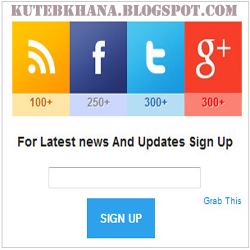
A few days ago I published a tutorial about how can you add facebook page like box in your blogger or website to increase your fans like but now I am going to tell you about how you can add a Subscriber box with social media icon into your website or blogger blog without difficulty. This is a great widget for blogger blog and websites which is used to promote your fan page and definitely increase your like and also increase your subscriber. 
So, follow these steps to add subscriber box 
with social media icons in blogger.


                                                                        Live Demo

Add Subscribe Widget With Social Media to Blogger:

  • Log in to your blogger account.
  •  Click on blog title in which you want to add This Subscriber box.
  •  Go to layout and then click on Add a Gadget.
  •  Select Html/JavaScript and paste the below code in it. 


<style> 
 #KHsocialcounters{ 
 width:300px; 
 padding: 0 0 40px 0; 
 border: 1px solid #CCC;} 
 ul#KHcounters { 
   list-style: none; 
   margin:0px; 
   overflow: hidden; 
   width:300px; 
   padding:10px 0 40px 0; 
    margin:10px 0 -60px 12px; 
 } 
 ul#KHcounters li { 
   float:left; 
   margin:0px 0px 5px 0px; 
   width:auto; 
   padding:0px; 
   -webkit-transition: all .2s ease-in-out; 
   -moz-transition: all .2s ease-in-out; 
   transition: all .2s ease-in-out;} 
 ul#KHcounters li a { 
   display: block; 
   height: 50px; 
   margin-right: 0px; 
   padding-top: 75px; 
   text-align: center; 
   text-decoration: none; 
   width: 70px; 
   text-shadow: 1px 1px 0 rgba(255,255,255,0.5); 
   font-weight: bold; 
 } 
 ul#KHcounters li:hover { 
   opacity:0.6
 } 
 ul#KHcounters li:last-child a{ 
   margin-right:0px; 
 } 
 ul#KHcounters #counter-rss { 
background:url(https://blogger.googleusercontent.com/img/b/R29vZ2xl/AVvXsEj7LDGg6X3D_8MMHqh7u6YsvRFBzLXOK_K3vl5ZS99tG5FmFoiOvo_QkRX8o1NPbX2K7xNRfhAW_ajz3HLA-r5hs3eBs5IFMos_hyphenhyphenapc872c4Ge4ts44BPG-_96t8GAcOlZVDWxp_YLQ2U/s1600/KH-rss-counter.jpg) no-repeat 
 } 
 ul#KHcounters #counter-rss a { 
   color:#cf6600 
 } 
 ul#KHcounters #counter-facebook { 
background:url(https://blogger.googleusercontent.com/img/b/R29vZ2xl/AVvXsEgdbC3ryO8cv1uyPOEboqaf0sJPlr4yWBOSfYbnxwgEec31SYY2pl5PJll1fl97tFP8CuGuv3YREb9jE_J7BSIJkIdgeYLxP5AxZH4YKoUpAGf311bPBM8mLDpHBZkiWhoDuJhrGlcVYSo/s1600/KH-facebook-counter.jpg) no-repeat 
 } 
 ul#counters #counter-facebook a { 
  color:#3b4d8f 
 } 
 ul#KHcounters #counter-twitter { 
background:url(https://blogger.googleusercontent.com/img/b/R29vZ2xl/AVvXsEgKGFjinX2r2Fw9GXjwnTaUj1vKoY_6jD5-vrMWsGznAoGhXr-XUfacXDH2RZO2roVCXU1anyNzTk6Gd4n0ya7iRWmKBLlYz4X8l-rXWR5fVBMVNF1stXxdxpEiI6ERjor9V30R6AbvpKs/s1600/KH-twitter-counter.jpg) no-repeat 
 } 
 ul#KHcounters #counter-twitter a { 
   color:#276ab6 
 }
ul#KHcounters #counter-google { 
background:url(https://blogger.googleusercontent.com/img/b/R29vZ2xl/AVvXsEhu6WULfGNbDkADvJf72QbLWZK13Yc3fofwe8MTQi0yBMe1G34piff1TlwytExu_9APeMML3xLxCbPmmZC5mYcH5s5fpFWq5iMWqxRW26CMtCFXyE7DkhNCxDTtVkFiOjhhjIJLBbvrcdQ/s1600/KH-google-counter.jpg) no-repeat 
 } 
 ul#KHcounters #counter-google a { 
   color:red 
 }   
 .textwidget {width: 300px;margin-top: -50px;} 
input[type="submit"]{color:white;border:0px;text-transform:uppercase;font-size:11px;padding:13px;float:left;font-weight:bold;background-color:#2DA1EB;margin-left:100px;cursor: pointer;margin-top: 10px;} 
 </style> 
 <center> 
 <br /> 
 <div id="KHsocialcounters"> 
 <ul id="KHcounters"> 
 <li class="first-item" id="counter-rss"> 
 <a href="http://feeds.feedburner.com/kutebkhana">100+</a></li> 
 <li id="counter-facebook"> 
 <a href="http://www.facebook.com/kutebkhana">250+</a></li> 
 <li id="counter-twitter"> 
 <a href="https://twitter.com/shakeelasghar">300+</a></li> 
<li id="counter-google"> 
 <a href="https://plus.google.com/u/0/116054827022382240041">300+</a></li> 
 </ul> 
 <div class="KHtextwidget"> 
<formaction="http://feedburner.google.com/fb/a/mailverify"method="post" onsubmit="window.open(http://feedburner.google.com/fb/a/mailverify?uri=kutebkhana, popupwindow, 
scrollbars=yes,width=350,height=520);return true" style=" padding: 3px; text-align: center;" target="popupwindow"> 
 <h3>For Latest news And Updates Sign Up</h3><br /> 
 <input name="email" style="width: 180px;" type="text" /><br /> 
 <input name="uri" type="hidden" value="kutebkhana" /><input name="loc" type="hidden" value="en_US" /><input type="submit" value="Sign Up" /></form></div><a href="http://kutebkhana.blogspot.com/2013/03/subscribe-widget-with-beautiful-social.html" style="margin-right: -50px;margin-top: 
100px;font-size: 10px;">Grab This</a> 
 </div></center>


Customization!

  • Replace "kutebkhana" "kutebkhana" "shakeelasghar"and "116054827022382240041" with your own feed, facebook, twitter, and google plus ID.
  •   Change 100+ 250+300+ 300+ according to your like and subscriber and then save the gadget.


You Are  Done!

Enjoy keep visiting!

Note: After a week manually change Facebook like twitter follower, and subscriber.

if you have any question and any problems feel free write a comments.


Go to link download

Read more »

Saturday, October 15, 2016

Wordpress Style Floating Social Sharing Bar Widget For Blogger

Wordpress Style Floating Social Sharing Bar Widget For Blogger


Social Sharing Bar
A few days ago when I browsing into the internet I found this floating shearing horizontal bar widget for blogger and now I am shearing on internet blogs and with my friends. This is one of the best floating shearing widgets to promote your article on social media like facebook, twitter, Google plus etc…..
This beautiful social media shearing widgets created by makingdifferent we gave credit for this social widgets to Nitin Maheta.


How can you add this social shearing widgets in blogger?

  • Log in to your blogger account.
  • Click on blog title in which you want to add This Social Sharing Bar
  • Go to Template and then click on "Edit HTML" Check Expand Widget Box..

Add JQuery Plugin!

If you already have a latest JQuery plugin, then ignore this step and directly follow the second step. If not add JQueryt hen add the below code just above </head> tag.
<script type="text/javascript" src="http://ajax.googleapis.com/ajax/libs/jquery/1.8.2/jquery.js"></script>
  • Now Find <data:post.body/> (Find using ctrl + F)
  • If you find <data:post.body/> more then three time so go with the second.
  • Immediately below it, add the following code
<b:if cond=data:blog.pageType == "item">

<div id=md-active-share-comment-marker></div>

</b:if>

  • Now find  </body> (Find using ctrl + F)
  • Add the below code before </body> tag.
  • Click on Save
<b:if cond=data:blog.pageType == &quot;item&quot;>
<script src=http://makingdifferent.github.com/blogger-widgets/Floating%20Social%20sharing%20Horizontal%20Bar.js type=text/javascript/>
<div id=md-share-window style=width: 100%; display: block; position: fixed; top: -450px; left: 0px; background-color: rgba(235, 88, 60, 0.8); z-index: 100; padding: 0 0 10px 0;>
<div style=width: 800px; margin: 20px auto;>
<span id=twitter style=float:left; margin: 0 5px; padding: 3px 0 0 0;>
<a class=twitter-share-button data-count=vertical href=http://twitter.com/share>Tweet</a>
<script src=http://platform.twitter.com/widgets.js type=text/javascript/></span>
<span id=md-plusone style=float:left; padding-top: 4px; margin: 0 5px;>
<script src=https://apis.google.com/js/plusone.js type=text/javascript/>
<g:plusone size=tall/></span>
<span id=md-fblike style=float: left; margin: 0 5px; padding: 4px 0 0; width: 50px; overflow: hidden;>
<div id=fb-root/>
<script src=http://connect.facebook.net/en_US/all.js#appId=155934781145405&amp;xfbml=1/>
<fb:like font= href= layout=box_count send=false show_faces=false width=50>
</fb:like>
</span>        
<div style=display:block; margin: 0 5px; padding: 5px 0px 0px; color: #FFFFFF>
Are you Awesome? Legend has it that Awesome people can and will share this post!<br/>
<span style=color: #FFFFFF; font-size: 18px;><data:blog.pageName/></span>
</div>
</div>
</div>
</b:if>

  • Now save your template and you have done!!
  • If you have some problem please write a comment.


Go to link download

Read more »

Thursday, September 1, 2016

Neat Triangle Design Social And Rss Icon Gadget For Blogger And Wordpress

Neat Triangle Design Social And Rss Icon Gadget For Blogger And Wordpress


I know we all like to have a unique look to our blogs and some unique icons to display our social profiles and feeds.So here I have a Subscribe and Follow section for your blog using a neat set of triangle social icons.You can add the icons with links to your feed and profiles to your sidebar on Blogger and Wordpress.

The icons are from Design Cauldron and look fantastic,Included in the gadget we have the code for are icons for your Rss Feed, Email Feed, Facebook, Twitter, Google +, Pinterest And YouTube.You can easily remove any of the icons if your not on one or more of the sites.


Below you can see the icons (All connected to our profiles so you can use them to connect with Spice Up Your Blog if your not already), further below that you can follow the link to see them live on a demo blog.


IconIconIconIconFollow Me on PinterestFollow Me on Pinterest 


Add Trinagnle Social Icons Gadget To Your Blog


On wordpress you add the code below to a text gadget by going to appearance > widgets > paste in code, making sure to add your links as highlighted.

On Blogger you add the gadget to a HTML/Javascript gadget by going to Layout > Add A Gadget > Choose HTML/Javascript and paste in the code, making sure to add your links as highlighted.

Note - In Blue you can see our URLs highlighted make sure to change them to your own.
<!--Subscribe Follow Gadget--><center><a title="Grab Our Rss Feed" href="http://feeds.feedburner.com/Shakeelasghar" target="_blank"><img border="0" src="https://blogger.googleusercontent.com/img/b/R29vZ2xl/AVvXsEi7iV-52_LEbxUAuqzCRsr2uoKK_AP5vIwVF_-js-5HJAfAVHkFkwS0cMJLYtRi_UOFZqeqd551GMg8eW_Ws4_G8zuzY82wa9MP5WPT-pM20LQ-uTWP0ZRGswwNPrPlNmXXpALmXWOqBDCl/s1600/RSS_78x75.png" style="margin-right:2px;" alt="Icon"/></a><a rel="nofollow" title="Get Free Updates Via Email" href="http://feedburner.google.com/fb/a/mailverify?uri=Shakeelasghar&amp;loc=en_US" target="_blank"><img border="0" src="https://blogger.googleusercontent.com/img/b/R29vZ2xl/AVvXsEjEiUjlTqXsZBop4y5JJKgYrZxTnnYxxaHnm2Z7CkYdUBo2jGMjNrAZQJTTNoLTIBvk2Hcr05FpajA7cTslxpvHS7JvdcTM-cj_Dh4Ph1TkdJPIW-qni8dMH8A0-A1fAlH-HjYij0hInj0U/s1600/Email_78x75.png" style="margin-right:2px;" alt="Icon"/></a><a rel="nofollow" title="Like Our Facebook Page" href="https://www.facebook.com/shakeelsoft" target="_blank"><img border="0" src="https://blogger.googleusercontent.com/img/b/R29vZ2xl/AVvXsEjmvEbrinN2J5n7Ah52azlSXixCWYhJngMg2Rkjt3qn2raRf9ZonllnAuqmgIWXcae_SdX-peDYfx12IH4Oy0u9eNRojnSRxNRmv0GK8GwwEqzl8Nyxwz6TXzKFxw-S9F0-D4mFoq4OGru2/s1600/Facebook_78x75.png" style="margin-right:2px;" alt="Icon"/></a><a rel="nofollow" title="Follow Our Updates On Twitter" href="http://twitter.com/shakeelasghar" target="_blank"><img border="0" src="https://blogger.googleusercontent.com/img/b/R29vZ2xl/AVvXsEhb0Yv4il87Dvx4pJUHbUjsG7C_2iixFCNdbp_WS1POrxMC_wY7Kl8J-ncSd7PcdJdF8Jfyx9qLw_lUTSghoFwcfwJT2dMPcozYV-5kmuPsXMFCYRYYXug-9EMnbBaaH196l8xl0HPDQVfP/s1600/Twitter_78x75.png" style="margin-right:2px;" alt="Icon"/></a><a title="Follow Us On Google+" rel="nofollow" href="https://plus.google.com/118318511607476456965/posts" target="_blank"><img style="margin-right:2px;" src="https://blogger.googleusercontent.com/img/b/R29vZ2xl/AVvXsEimwv5AzZRpPDNW3yUQhqvM2mX_k-qWvtsHNvGSnzcoa1xIOeqVizZZ8QycbDTSH9jg8ePlT-OFaWxKDRy1Mz_8-aoSEn6jBpiBcBSGiJVF6Y6RAEjRjTT7JYnEv027CODsAbeywn0W2GZy/s1600/Google+_78x75.png"/></a><a title="Follow Our Pins" rel="nofollow" href="http://pinterest.com//" target="_blank"><img style="margin-right:2px;" src="https://blogger.googleusercontent.com/img/b/R29vZ2xl/AVvXsEgpiY2Dx2BT_RMMaMDGV4S50o6YHF-DzvrhRKJz-X-Dgx8WhcCAvBjDYeT9Uc0OaTkF46PraoEQ4OOXXRnqwHb9O7Z2aj1CQcwZzDwCHuPH8W3AIIq-NorF1KukAUqgIdyYxbgHaWDsqBS-/s1600/Pinterest_78x75.png" alt="Follow Me on Pinterest" /></a><a title="See Our Vids" rel="nofollow" href="http://www.youtube.com/user/shakeelasghar1990/" target="_blank"><img style="margin-right:2px;" src="https://blogger.googleusercontent.com/img/b/R29vZ2xl/AVvXsEijOu8t7RAdXLHPptUOgjlt5HWUh6KXHogXsKIE7oeh__GVQVPRKRy8RzeYVJdTKjkK7XDR9Mcb7nvmgYvkPDDXJ1eGC43k2oG9dQLvJAM7wX_manncxu1QuAXjUyoVihvE7bhMulEhUbE5/s320/YouTube_78x75.png" alt="YouTube" /></a><br/></center><!--Subscribe Follow Gadgethttp://shakeelasghar.blogspot.com/  -->

Thanks to the guys at Design Cauldron who quickly responded to my Tweet and added Rss and Email icons to the set so I could share them with you.

Let us know what you think and add your questions to the comments below.

Go to link download

Read more »

Wednesday, August 31, 2016

How to add floating social media buttons to blogger blog

How to add floating social media buttons to blogger blog


Social Media Buttons gives the blog readers the option of sharing your posts directly to social networking sites. Today, the most popular social networking sites are Facebook , Twitter, Digg , Delicious , Stumbleupon , Google + etc. Sharing your posts on the social networking sites not only gives you more traffic but also creates powerful backlinks which will increase your Alexa Traffic Rank.


In this post, I will show you how to add a floating social media share buttons to your blogger blog by simply adding a HTML/Javascript code to a gadget in your left sidebar. 


<!-- floating share bar Start http://shakeelasghar.blogspot.com--><style type="text/css">#pageshare {position:fixed; bottom:15%; margin-left:-71px; float:left; border-radius:5px;-moz-border-radius:5px;-webkit-border-radius:5px;background-color:#fff;padding:0 0 2px 0;z-index:10;}#pageshare .sbutton {float:left;clear:both;margin:5px 5px 0 5px;}.fb_share_count_top {width:48px !important;}.fb_share_count_top, .fb_share_count_inner {-moz-border-radius:3px;-webkit-border-radius:3px;}.FBConnectButton_Small, .FBConnectButton_RTL_Small {width:49px !important; -moz-border-radius:3px;/*bs-fsmsb*/-webkit-border-radius:3px;}.FBConnectButton_Small .FBConnectButton_Text {padding:2px 2px 3px !important;-moz-border-radius:3px;-webkit-border-radius:3px;font-size:8px;}</style><div id=pageshare title="Get this from BloggerSentral.com"><div class=sbutton id=fb><a name="fb_share" type="box_count" href="http://www.facebook.com/sharer.php"></a><script src="http://static.ak.fbcdn.net/connect.php/js/FB.Share" type="text/javascript"></script></div><div class=sbutton id=rt><script src="http://tweetmeme.com/i/scripts/button.js" type=text/javascript></script></div><div class=sbutton id=su><script src="http://www.stumbleupon.com/hostedbadge.php?s=5"></script></div><div class=sbutton id=digg style=margin-left:3px;width:48px><script src=http://widgets.digg.com/buttons.js type=text/javascript></script><a class="DiggThisButton DiggMedium"></a></div><div class=sbutton id=gplusone><script type="text/javascript" src="https://apis.google.com/js/plusone.js"></script><g:plusone size="tall"></g:plusone></div><div style="clear: both;font-size: 9px;text-align:center;">Get <a href="http://shakeelasghar.blogspot.com/2012/08/how-to-add-floating-social-media.html">this</a></div>
<!-- floating share bar End http://shakeelasghar.blogspot.com-->


  • Simply copy the above code.

  • Go to your blogger account.

  • Go to layout.

  • Add a gadget (preferably in the left sidebar for the best effects).

  • HTML/Javascript

  • Paste the copied code.

  • Save 

  • View your blog to see the effect.


Go to link download

Read more »

Friday, August 26, 2016

Flipboard Your Social News Magazine for ipad iphone

Flipboard Your Social News Magazine for ipad iphone


 Flipboard: Your Social News Magazine

flipboard-app-ipad-miniFlipboard is a personal news magazine filled with everything being shared across the Web, from breaking news to stories on world events, sports, travel and more. Simply pick a few topics and your Flipboard is instantly populated with the news you care about. If you want more, use the search bar to find favorite sources or browse recommended reading from the staff at Flipboard.
Download Flipboard – free

Go to link download

Read more »

Sunday, August 21, 2016

Add Cool Social Media Sharing Touch Me Widget For Blogger

Add Cool Social Media Sharing Touch Me Widget For Blogger


Cool Social Media Sharing Touch Me Widget
This cool widget calls "Touch Me". Its named such due to its appealing look that forces a visitor to roll hover the cursor over the icons and hit follow! :) This gadget is neatly structured using buttons from popular services like Google Plus, Facebook, Twitter and RSS.

This widget should be working like the picture above or you can see it at demo page.

DEMO HERE

How To Add Cool Social Media Sharing Touch Me Widget To Blogger?

1. Go To Blogger Dashboard > Layout.
2. Choose "Add a Gadget".
3. Select HTML/JavaScript.
4. Copy and paste below code inside it:


<style>
/*--------Touch Me Sharing Widget ------*/
.touchme a {
display:block;
height:50px;
width:50px;
padding:0 4px;
float:left;
background:transparent url(http://mybloggertricks.googlecode.com/files/Sharing%20Touch%20Me.png) no-repeat;
-webkit-transition: ease-in 0.2s all;   
-moz-transition: ease-in 0.2s all;   
-o-transition: ease-in 0.2s all;   
-ms-transition: ease-in 0.2s all;   
transition: ease-in 0.2s all;
cursor:pointer;
}

.touchme a.googleplus {
background-position: 0px -58px;
}
.touchme a.googleplus:hover {
background-position: 0px 0px;
}

.touchme a.twitter {
background-position: 0px -290px;
}
.touchme a.twitter:hover {
background-position: 0px -232px;
}
.touchme a.facebook {
background-position: 0px -406px;
}
.touchme a.facebook:hover {
background-position: 0px -348px;
}

.touchme a.rss {
background-position: 0px -174px;
}
.touchme a.rss:hover {
background-position: 0px -116px;
}

</style>

<div class=touchme>
<!--RSS-->
<a class=rss href="YOUR RSS LINK" rel=external nofollow target=_blank></a>
<!--Google Plus-->
<a class=googleplus href="YOUR GOOGLE PROFILE LINK" rel=external nofollow target=_blank></a>
<!--Facebook-->
<a class=facebook href="YOUR FACEBOOK LINK" rel=external nofollow target=_blank></a>
<!-- Twitter -->
<a class=twitter href="YOUR TWITTER LINK" rel=external nofollow target=_blank ></a>

</div>

Note:

  • Replace YOUR RSS LINK with your Feed burner link.
  • Replace YOUR GOOGLE PROFILE LINK with your Google+ URL
  • Replace YOUR FACEBOOK LINK with your Facebook URL
  • Replace YOUR TWITTER LINK with your Twitter Profile URL


5. Save it and you are done.

Thanks to MyBloggerTricks for this code.

Have a nice day. Do not forget to share and comment. =)

Go to link download

Read more »

Sunday, August 14, 2016

Keyboard Shortcuts For Popular Social Media Networks

Keyboard Shortcuts For Popular Social Media Networks


Social Media Keyboard Shortcuts
A lot of people use Social Media. Its a great way to stay connected with your friends and family. If you landed on this page through a search engine, or even otherwise, then chances are that you are an active social media user. Some people deal with social media many times a day. For such people, and even others who arent as avid at social media, it could pay off to learn some keyboard shortcuts. Browsers have shortcut keys, and so do websites. While some people might prefer the mouse, others can browse through their social world more quickly and efficiently with the help of keyboard shortcut keys. Here are the most useful shortcut keys for the three most popular social media networks; Facebook, Twitter and Google plus.

Facebook

Unlike other websites and social media, Facebook has based its shortcut keys on the browser. Hence, the shortcuts for Facebook will vary from browser to browser. In Firefox, you will need to add a Shift key before the key combinations given below, whereas in Internet Explorer, you need to hit Enter after the combination. Same goes for a Mac, except that for Firefox, you need to press Ctrl instead of Shift. Rest of the keys should be same. Here are the key combinations for Facebook.

Key Function
Alt + M Compose new message
Alt + / Main site search
Alt + 1 Go to home page
Alt + 2 Go to Timeline
Alt + 3 See friends requests
Alt + 4 Go to message inbox
Alt + 5 See all notifications
Alt + 6 Go to Account Settings
Alt + 7 Go to Privacy Settings
Alt + 8 Go to Facebooks Profile Page
Alt + 9 Go to Facebooks Terms of Service
Alt + 0 Go to Facebook Help Center

Twitter

Twitter shortcuts are the easiest to use. Twitter also displays the whole list of shortcuts in a pop-up so you can easily look for the action you want. To bring up this pop-up, simply press the ? key (Shift + /). Here is the list of Twitter shortcuts.


Key Function
Actions
F Favorite
R Reply
T Retweet
M New direct message
N New Tweet
Enter Open Tweet Details
L Close all open Tweets
Navigation
? List of all shortcuts
J Next Tweet
K Previous Tweet
Space Page down
/ Search
. Go to top and load new Tweets
Timelines
G + H Go Home
G + C Go to Connect
G + A Activity
G + D Discover
G + R Mentions
G + L Lists
G + P Profiles
G + F Favorites
G + M Messages
G + S Settings
G + U Go to user

Google Plus

Google Plus also has its share of shortcuts, but they are relatively fewer, and they can only be activated in certain instances, such as when a post or a particular section of the website is in focus. Here are the most commonly used shortcuts for Google plus.

Key Function
K Go to previous item in the stream (feed)
J Go to next item in the stream
Q Search for people to chat with (when chat windows is active)
Space Scroll down
Shift + Space Scroll up
Enter Start new comment (when focused on a post)
Enter + Tab End comment
@ or + Tag someone (start typing a name)

These were the most common shortcut keys for the most popular social media. If you know of more such shortcuts, then do tell us in the comments below, and we might add it to this list. Cheers :)

Go to link download

Read more »

Thursday, August 11, 2016

Add social media shearing touch me widget for blogger

Add social media shearing touch me widget for blogger


Now today I am shearing a beautiful touch me social media widget for blogger and website. This gadget is prearranged using buttons from popular services like pintrest, Google, twitter, facebook, and Rss…
This widget has a beautifulcurser effect and its look forced visitor to roll over the cursor and hit follow.
This widget working like a picture you can also see it at demo page.

LIVE DEMO

How to add social media shearing touch me widget to blogger?

  • Log in to your blogger account.
  • Click on blog title in which you want to add This.
  • Go to layout and then click on Add a Gadget.
  • Select "HTML/JavaScript" Widget.
  • Copy the below code and paste in it.  
<style>
.Subscribe-WTB h6{
background:URL(https://blogger.googleusercontent.com/img/b/R29vZ2xl/AVvXsEjw1ekUwnfSxIAr0Fyh535D00LoRPV3or523ofId4wN89Iz3RQckX00umBk_Ubb4VTckahV4Byfgt-r1IlMgD0brZ2NsWl-IVoKH86fZxOtRE3AW-Rw09QzWjogloscVztEsad7LYeGkOs/s1600/Subscribe+WTB+button.gif) no-repeat;height:50px;
margin:0px 0 0px 0;
padding:0px 10px 0px 0px;
font-size:0px;
font-family:Sans-serif, Arial, Helvetica;
font-weight:bold;
text-transform:uppercase;
color:#ffffff;
text-shadow:0 1px 0 #fff;
}
ul.social {
list-style: none;
margin: 02px;
overflow: hidden;
}
.social li {
float: left;
background: none !important;
padding: 0 !important;
margin: 0 4px;
}
.social li a {
display: block;
width: 50px;
height: 40px;
background: url("https://blogger.googleusercontent.com/img/b/R29vZ2xl/AVvXsEh2IZydHd4ftElXNS6BGjDEV9eJrcAGwWNqmWiGZl_vQgsgktvzVpgfTKJKNpyb-vblq4yXDRCb4P3n4R1h4BohWd5R8jpaiQLqURWSLnD5Dp-Dt-aFbkPg4rZ7dbC3954XN7l5B6kNuDU/s1600/Subscribe+WTB+Social.png") no-repeat transparent;
text-indent: -99999em !important;
-webkit-transition: ease-in 0.15s all;
-moz-transition: ease-in 0.15s all;
-o-transition: ease-in 0.15s all;
-ms-transition: ease-in 0.15s all;
transition: ease-in 0.15s all;
}
.social li a:hover {
padding: 0 !important;
}
.social li.rssicon a {
background-position: 0 0;
border-right: 1px solid #e6e6e6;
}
.social li.twicon a {
background-position: -50px 0;
border-right: 1px solid #e6e6e6;
}
.social li.fbicon a {
background-position: -100px 0;
border-right: 1px solid #e6e6e6;
}
.social li.gicon a {
background-position: -150px 0;
border-right: 1px solid #e6e6e6;
}
.social li.pinicon a {
background-position: -200px 0;
}
.social li.rssicon a:hover {
background-position: 0 -50px;
border-right: 1px solid #e6e6e6;
}
.social li.twicon a:hover {
background-position: -50px -50px;
border-right: 1px solid #e6e6e6;
}
.social li.fbicon a:hover {
background-position: -100px -50px;
border-right: 1px solid #e6e6e6;
}
.social li.gicon a:hover {
background-position: -150px -50px;
border-right: 1px solid #e6e6e6;
}
.social li.pinicon a:hover {
background-position: -200px -50px;
}
.Subscribe-WTB{
width: 300px;
float: left;
}
.Subscribe-WTB.count{
color:#F17C18;
font-size: 14px;
font-weight: bold;
font-family: Helvetica, Arial;
height: 40px;
line-height: 40px;
vertical-align: middle;
width: 310px;
padding: 0 0px 0 4px;
margin:0;
}  
.Subscribe-WTB.count span.bigcount{
color:#F17C18;
font-size: 24px;
font-family: Helvetica, Arial;
line-height: 39px;
vertical-align: middle;
margin:0px;
padding:10px 0px 0px 0;
}  

.Subscribe-WTB.subicons{
border-bottom: 1px solid #e6e6e6;
margin: 0px 0 0px 0;
float: left;
width: 300px;
font-family: Helvetica, Arial; font-size: 12px;
}  
</style>
<div class="Subscribe-WTB">
<h6 class=title>Subscribe Now!</h6>
<div class="count">
<span class="bigcount">
<a href="http://feeds.feedburner.com/KutebKhana"><img
src="http://feeds.feedburner.com/~fc/KutebKhana?
bg=99CCFF&amp;fg=444444&amp;anim=1" height="26" width="88" style="border:0"
alt="" /></a></span>  <b><span style=color: #04BDFA;>Learn Pro</span><span style=color: #FB9B03;> Tricks Daily</span></b> </div>
<div class="subicons">
<ul class="social">
<li class="rssicon">
<a href="http://feeds.feedburner.com/kutebkhana" rel="nofollow"
target="_blank">Rss</a></li>
<li class="twicon">
<a href="http://twitter.com/shakeelasghar" rel="nofollow"
target="_blank">Twitter</a></li>
<li class="fbicon">
<a href="http://www.facebook.com/kutebkhana" rel="nofollow"
target="_blank">FaceBook</a></li>
<li class="gicon">
<a href="https://plus.google.com/116054827022382240041/" rel="nofollow"
target="_blank">Google+</a></li>
<li class="pinicon">
<a href="http://pinterest.com/shakeelasghar" rel="nofollow"
target="_blank">Pinterest</a></li>
</ul>
</div>


Customization!

  • Change Green Highlighted color names with your own social media account names...
  • Change Red Highlighted color address with your own feedburner button address....
  • Now Hit Save You Are Done!!!!!!


Go to link download

Read more »