Showing posts with label gadget. Show all posts
Showing posts with label gadget. Show all posts
Friday, November 25, 2016
Add An Awesome Fixed Position Slide Open Heart Bookmarking Gadget To Blogger
Add An Awesome Fixed Position Slide Open Heart Bookmarking Gadget To Blogger
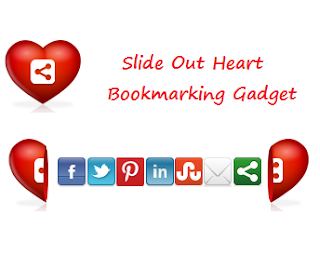
generate lots more shares.So below is a tutorial showing you just how to do that, first check out the live demo.

Add The Split Heart Bookmarking Gadget Top Your Blog
Remember Always Back Up Your Template Before You Make Changes
Step 1. In Your Blogger Dashboard Click Design > Edit Html
Step 2. Find the following piece of code in your blogs Html : (Click Ctrl and F for a search bar to help find the code
</head>Step 3. Copy and Paste the following code Directly Above / Before </head>
<!-- Start Heart Bookmarking Gadget Code From http://shakeelasghar.blogspot.com// -->
<script src=http://w.sharethis.com/gallery/shareegg/shareegg.js type=text/javascript/>
<script src=http://w.sharethis.com/button/buttons.js type=text/javascript/>
<script type=text/javascript>stLight.options({publisher: "ur-98d377f-bdd3-9ad1-fbe5-2a678f0a60ee", onhover:false}); </script>
<link href=http://w.sharethis.com/gallery/shareegg/shareegg.css media=screen rel=stylesheet type=text/css/>
<!-- End Heart Bookmarking Gadget Code From http://shakeelasghar.blogspot.com// -->
Step 4. Find the following piece of code in your blogs Html : (Click Ctrl and F for a search bar to help find the code.
</body>
Step 5. Now Copy And Paste This Code Directly Above / Before </body>
<!-- Start Heart Share Code From http://shakeelasghar.blogspot.com// -->Important, Move The Position Of The Gadget :
<div style=position: fixed; bottom: 2%; left: 2%;>
<div class=shareEgg id=shareThisShareHeart/>
</div>
<script type=text/javascript>stlib.shareEgg.createEgg('shareThisShareHeart', ['facebook','twitter','pinterest','linkedin','stumbleupon','email','sharethis'], {title:' <data:blog.pageTitle/>',url:'<data:blog.url/>',theme:'shareheart'});</script><a href="http://shakeelasghar.blogspot.com//">Blogger Wordpress Gadgets</a><!-- End Heart Share Code From http://shakeelasghar.blogspot.com// -->
The Gadget is currently set to be in the bottom right corner of your blog but you can easily change this.In yellow above you can see bottom: 2%; left: 2%;.You can change Bottom to top for it to be at the top of the page and left to right for it to be on the right of the page.You can also change the percentages to have it further from the bottom/top and left/right.
Step 6. Save Your Template.
Thats it the gadget has been added to your blog.Make sure to check out more of our Blog Gadgets and Social Bookmarking Gadgets.
Go to link download

Tuesday, November 1, 2016
How To Find Identify Blogger Widget Gadget ID
How To Find Identify Blogger Widget Gadget ID

There is several ways to find a blogger widget/gadget ID.
- Using firebug
- Searching on Template
Steps to follow:
1. Go to your Blogs Dashboard > Layout2. Mouse hover on your widgets Edit link
3. A floating URL will came out at the bottom of your browser. (See image) In the URL you can find your widget ID by looking there "widgetId=HTML5". Here "HTML5" the ID.

Or Alternatively
2.1 Click on Edit Button of the Gadget2.2 A new small window will pop up. Look at the address bar of that window. At the very end of the URL you will find the Gadget/Widget ID. (See The Screenshot Below)

I hope that this little article may help you . Dont forget to say thanks :p. And stay with DIMPost.
Go to link download
Thursday, September 1, 2016
Neat Triangle Design Social And Rss Icon Gadget For Blogger And Wordpress
Neat Triangle Design Social And Rss Icon Gadget For Blogger And Wordpress

The icons are from Design Cauldron and look fantastic,Included in the gadget we have the code for are icons for your Rss Feed, Email Feed, Facebook, Twitter, Google +, Pinterest And YouTube.You can easily remove any of the icons if your not on one or more of the sites.
Below you can see the icons (All connected to our profiles so you can use them to connect with Spice Up Your Blog if your not already), further below that you can follow the link to see them live on a demo blog.


Add Trinagnle Social Icons Gadget To Your Blog
On wordpress you add the code below to a text gadget by going to appearance > widgets > paste in code, making sure to add your links as highlighted.
On Blogger you add the gadget to a HTML/Javascript gadget by going to Layout > Add A Gadget > Choose HTML/Javascript and paste in the code, making sure to add your links as highlighted.
Note - In Blue you can see our URLs highlighted make sure to change them to your own.
<!--Subscribe Follow Gadget--><center><a title="Grab Our Rss Feed" href="http://feeds.feedburner.com/Shakeelasghar" target="_blank"><img border="0" src="https://blogger.googleusercontent.com/img/b/R29vZ2xl/AVvXsEi7iV-52_LEbxUAuqzCRsr2uoKK_AP5vIwVF_-js-5HJAfAVHkFkwS0cMJLYtRi_UOFZqeqd551GMg8eW_Ws4_G8zuzY82wa9MP5WPT-pM20LQ-uTWP0ZRGswwNPrPlNmXXpALmXWOqBDCl/s1600/RSS_78x75.png" style="margin-right:2px;" alt="Icon"/></a><a rel="nofollow" title="Get Free Updates Via Email" href="http://feedburner.google.com/fb/a/mailverify?uri=Shakeelasghar&loc=en_US" target="_blank"><img border="0" src="https://blogger.googleusercontent.com/img/b/R29vZ2xl/AVvXsEjEiUjlTqXsZBop4y5JJKgYrZxTnnYxxaHnm2Z7CkYdUBo2jGMjNrAZQJTTNoLTIBvk2Hcr05FpajA7cTslxpvHS7JvdcTM-cj_Dh4Ph1TkdJPIW-qni8dMH8A0-A1fAlH-HjYij0hInj0U/s1600/Email_78x75.png" style="margin-right:2px;" alt="Icon"/></a><a rel="nofollow" title="Like Our Facebook Page" href="https://www.facebook.com/shakeelsoft" target="_blank"><img border="0" src="https://blogger.googleusercontent.com/img/b/R29vZ2xl/AVvXsEjmvEbrinN2J5n7Ah52azlSXixCWYhJngMg2Rkjt3qn2raRf9ZonllnAuqmgIWXcae_SdX-peDYfx12IH4Oy0u9eNRojnSRxNRmv0GK8GwwEqzl8Nyxwz6TXzKFxw-S9F0-D4mFoq4OGru2/s1600/Facebook_78x75.png" style="margin-right:2px;" alt="Icon"/></a><a rel="nofollow" title="Follow Our Updates On Twitter" href="http://twitter.com/shakeelasghar" target="_blank"><img border="0" src="https://blogger.googleusercontent.com/img/b/R29vZ2xl/AVvXsEhb0Yv4il87Dvx4pJUHbUjsG7C_2iixFCNdbp_WS1POrxMC_wY7Kl8J-ncSd7PcdJdF8Jfyx9qLw_lUTSghoFwcfwJT2dMPcozYV-5kmuPsXMFCYRYYXug-9EMnbBaaH196l8xl0HPDQVfP/s1600/Twitter_78x75.png" style="margin-right:2px;" alt="Icon"/></a><a title="Follow Us On Google+" rel="nofollow" href="https://plus.google.com/118318511607476456965/posts" target="_blank"><img style="margin-right:2px;" src="https://blogger.googleusercontent.com/img/b/R29vZ2xl/AVvXsEimwv5AzZRpPDNW3yUQhqvM2mX_k-qWvtsHNvGSnzcoa1xIOeqVizZZ8QycbDTSH9jg8ePlT-OFaWxKDRy1Mz_8-aoSEn6jBpiBcBSGiJVF6Y6RAEjRjTT7JYnEv027CODsAbeywn0W2GZy/s1600/Google+_78x75.png"/></a><a title="Follow Our Pins" rel="nofollow" href="http://pinterest.com//" target="_blank"><img style="margin-right:2px;" src="https://blogger.googleusercontent.com/img/b/R29vZ2xl/AVvXsEgpiY2Dx2BT_RMMaMDGV4S50o6YHF-DzvrhRKJz-X-Dgx8WhcCAvBjDYeT9Uc0OaTkF46PraoEQ4OOXXRnqwHb9O7Z2aj1CQcwZzDwCHuPH8W3AIIq-NorF1KukAUqgIdyYxbgHaWDsqBS-/s1600/Pinterest_78x75.png" alt="Follow Me on Pinterest" /></a><a title="See Our Vids" rel="nofollow" href="http://www.youtube.com/user/shakeelasghar1990/" target="_blank"><img style="margin-right:2px;" src="https://blogger.googleusercontent.com/img/b/R29vZ2xl/AVvXsEijOu8t7RAdXLHPptUOgjlt5HWUh6KXHogXsKIE7oeh__GVQVPRKRy8RzeYVJdTKjkK7XDR9Mcb7nvmgYvkPDDXJ1eGC43k2oG9dQLvJAM7wX_manncxu1QuAXjUyoVihvE7bhMulEhUbE5/s320/YouTube_78x75.png" alt="YouTube" /></a><br/></center><!--Subscribe Follow Gadgethttp://shakeelasghar.blogspot.com/ -->
Thanks to the guys at Design Cauldron who quickly responded to my Tweet and added Rss and Email icons to the set so I could share them with you.
Let us know what you think and add your questions to the comments below.
Go to link download
Subscribe to:
Posts (Atom)