Showing posts with label like. Show all posts
Showing posts with label like. Show all posts
Monday, November 14, 2016
How To Add Facebook Like Page Box In Your Bloggers Blog
How To Add Facebook Like Page Box In Your Bloggers Blog

So, follow these steps to add social media Facebook page like box in blogger.
Add Facebook Page like Box to Blogger:
- Log in to your blogger account.
- Click on blog title in which you want to add This beautiful like box.
- Go to layout and then click on Add a Gadget.
- Select Html/JavaScript and paste the below code in it.
<iframe src="//www.facebook.com/plugins/likebox.php?href=http://www.facebook.com/kutebkhana&width=320&height=275&
amp;colorscheme=light&show_faces=true&border_color&stream=false&header=false&" style="border:none; overflow:hidden; width:320px; height:258px;" ></iframe>
Customization!
- Replace kutebkhana page title with your own page title.
- Change width=320 and height=275 according to your blog template and save the gadget.
You Are Done!
Go to link download

Monday, October 31, 2016
How to make CSS3 keyboard like text effect in blogger And Website Post
How to make CSS3 keyboard like text effect in blogger And Website Post
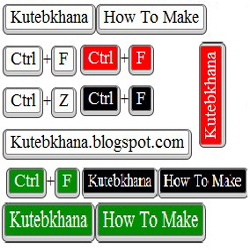
How can you add keyboard keys effect in your blog post?
- Log in to your blogger account.
- Click on blog title in which you want to add This Keyboard Like Text Effect
- Go to Template and then click on "Edit HTML" Check Expand Widget Box..
- Now Find bellows code Using Ctrl+F Function.
]]></b:skin>
- Paste bellow CSS Code just above this ]]></b:skin>
Code for White color Keyboard Keys
KKW{
border:1px solid gray;
Background: #ffffff;
font-size:1.2em;
box-shadow:1px 0 1px 0 #eee, 0 2px 0 2px #ccc, 0 2px 0 3px #444;
-webkit-border-radius:3px;
-moz-border-radius:3px;
border-radius:3px;
margin:2px 3px;
padding:1px 5px;
}
Code for Black color Keyboard Keys
KKB{
border:1px solid gray;
Background: #000;
font-size:1.2em;
box-shadow:1px 0 1px 0 #eee, 0 2px 0 2px #ccc, 0 2px 0 3px #444;
Color:fff;
-webkit-border-radius:3px;
-moz-border-radius:3px;
border-radius:3px;
margin:2px 3px;
padding:1px 5px;
}
Code for Red color Keyboard Keys
KKR{
border:1px solid gray;
Background: #FF0000;
font-size:1.2em;
box-shadow:1px 0 1px 0 #eee, 0 2px 0 2px #ccc, 0 2px 0 3px #444;
Color:fff;
-webkit-border-radius:3px;
-moz-border-radius:3px;
border-radius:3px;
margin:2px 3px;
padding:1px 5px;
}
Code for Green color Keyboard Keys
KKG{
border:1px solid gray;
Background: #008E00;
font-size:1.2em;
box-shadow:1px 0 1px 0 #eee, 0 2px 0 2px #ccc, 0 2px 0 3px #444;
Color:fff;
-webkit-border-radius:3px;
-moz-border-radius:3px;
border-radius:3px;
margin:2px 3px;
padding:1px 5px;
}
Settings!
You Can Change highlighted code for change your keyboard background color. (Choose color From here)Using in your blog post and pages
Please replace Write Your Word Here With Your Word!For Black:
<KKB> Write Your Word Here </KKB>
For White:
<KKW> Write Your Word Here </KKW>
For red:
<KKR> Write Your Word Here </KKR>
For Green:
<KKG> Write Your Word Here </KKG>
If you have any Kind of questions about this post, please lave a comments bellow.
Do not forget to share this Post with your friends!
Go to link download
Subscribe to:
Posts (Atom)